
To register an employee, you can submit their details directly through the SSHFC portal after logging in successfully. There are two (2) options available for submitting the employee registration.
Option 1: Submit Employee Registration via the Dashboard
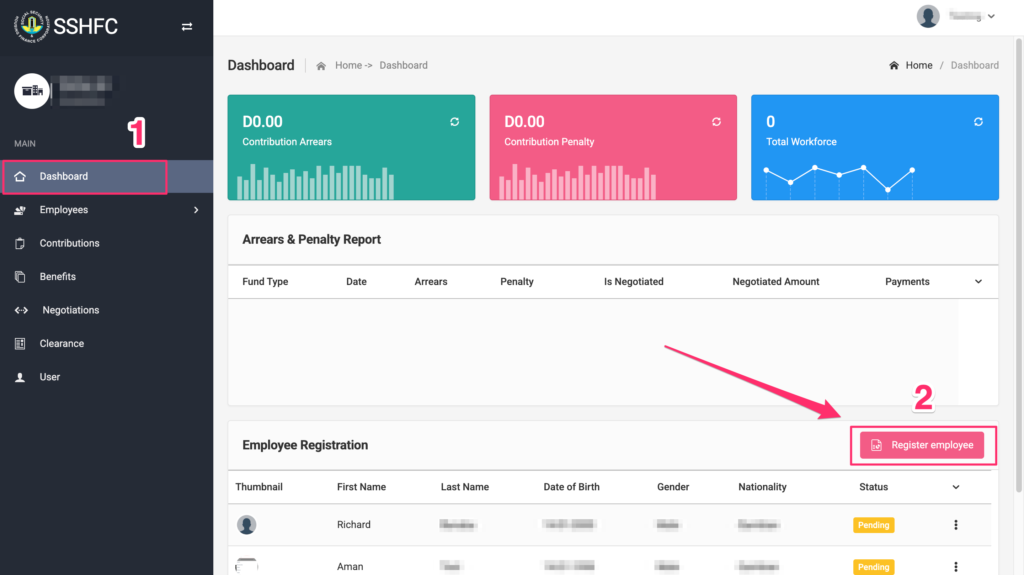
Step 1: On the left side panel, click on the Dashboard menu.
Step 2: Next, click on the “Register Employee” button. This will load the registration form for you to complete.
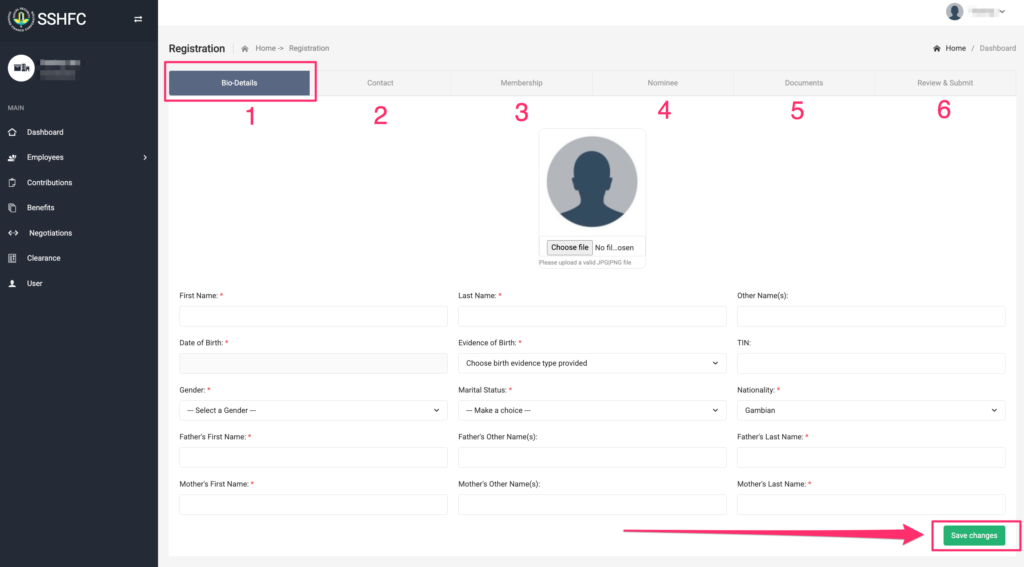
Step 3: You will need to provide 5 categories of information about the employee in each tab: Bio-Details, Contact, Membership, Nominee, and Document. After filling in the form for each category, click on the “Save Changes” button to save the information entered.
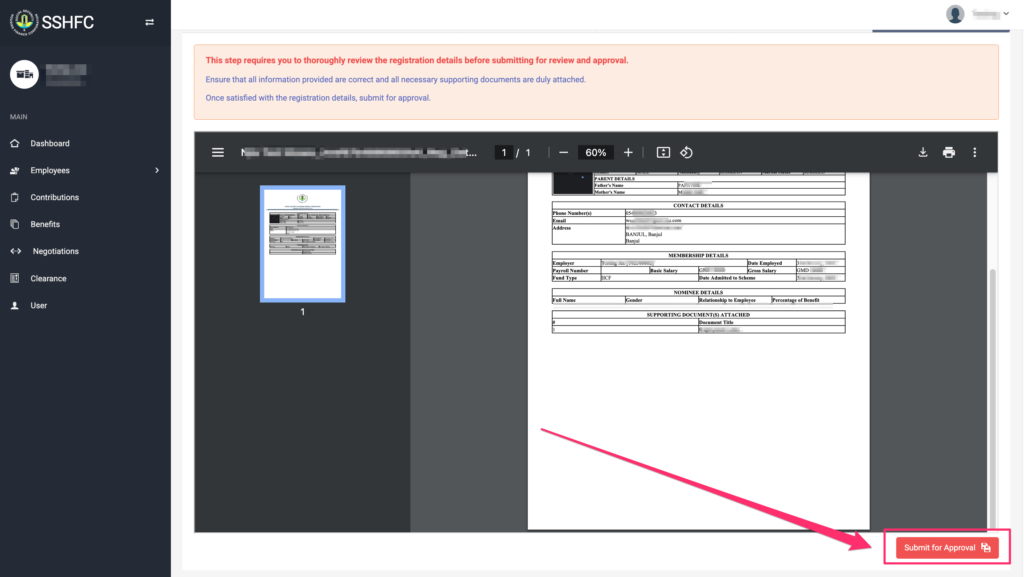
Step 4: On the 6th tab, be sure to review all the information entered before submitting for Approval
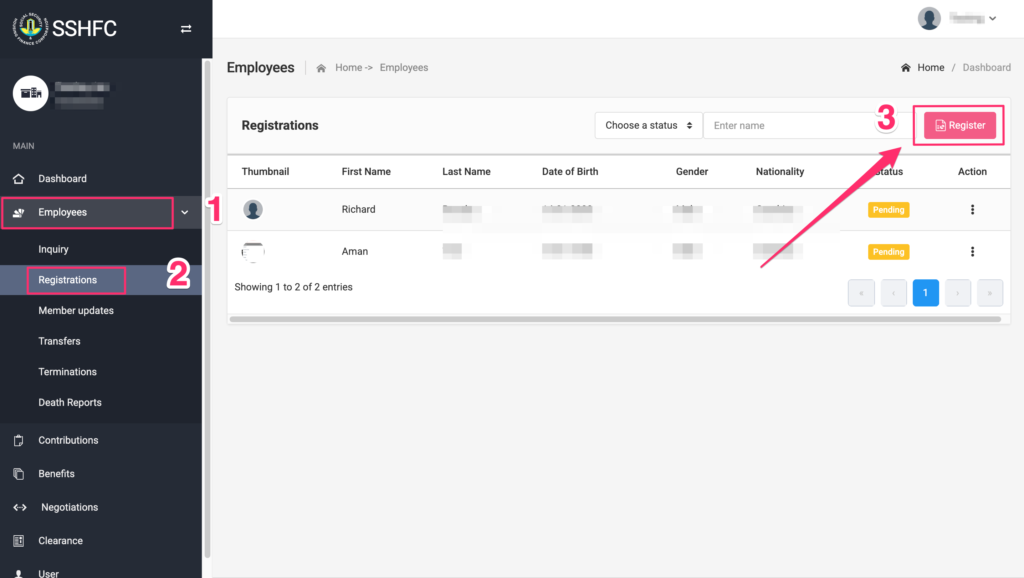
Option 2: Submit Employee Registration via the Employees Menu
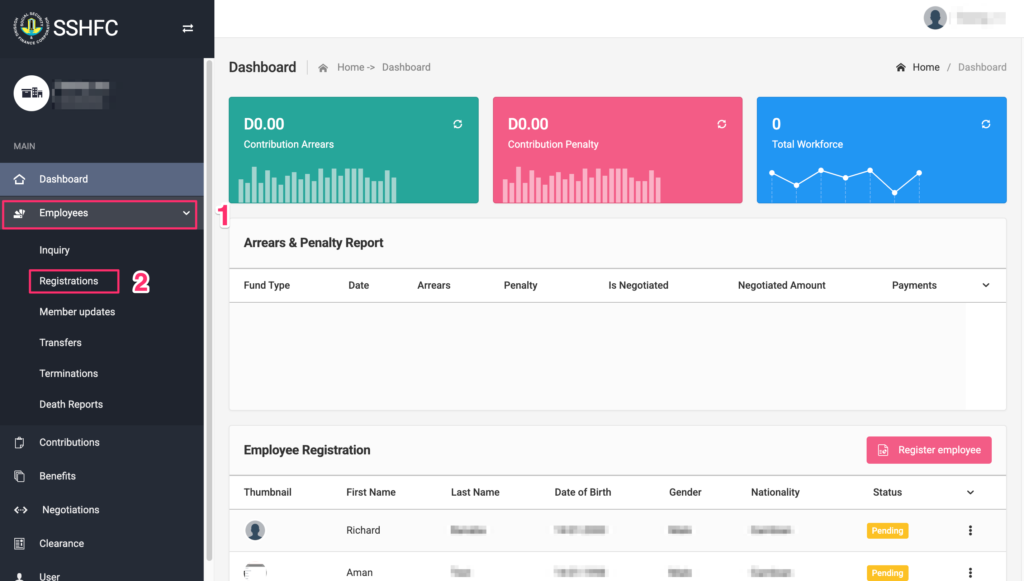
Step 1: Click on Employees from the left menu panel.
Step 2: From the drop-down menu under Employees, click on the “Registrations” sub-menu.
Step 3: Click the “Register” Button
Next, click on the “Register” button. This will load the registration form for you to enter the employee’s details.
Step 4: You will need to provide 5 categories of information about the employee in each tab: Bio-Details, Contact, Membership, Nominee, and Document. After filling in the form for each category, click on the “Save Changes” button to save the information entered.
Step 5: On the 6th tab, be sure to review all the information entered before submitting for Approval