Advice Sheet Generation:
This is where you begin the process of creating an advice sheet for employee contributions.
Step 1 – Contribution Menu:
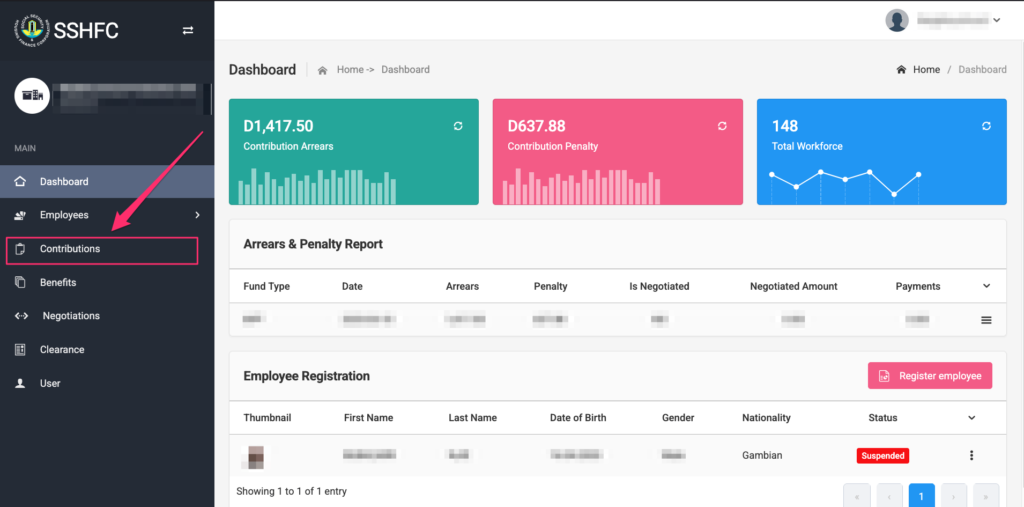
From the left-hand panel, click on “Contribution” to access contribution-related features.
Step 2 – Create Advice Sheet:
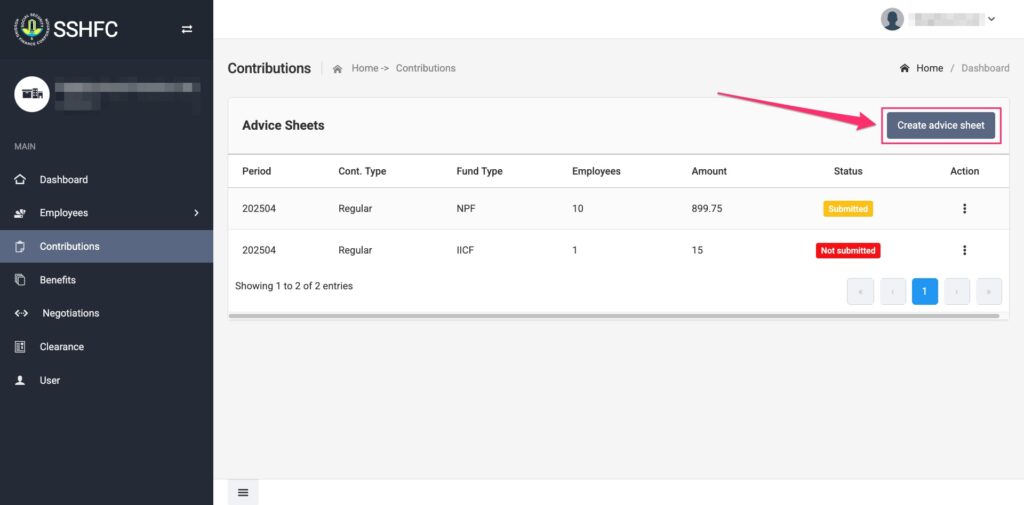
Click on the “Create Advice Sheet” button to open the form for generating a new advice sheet.
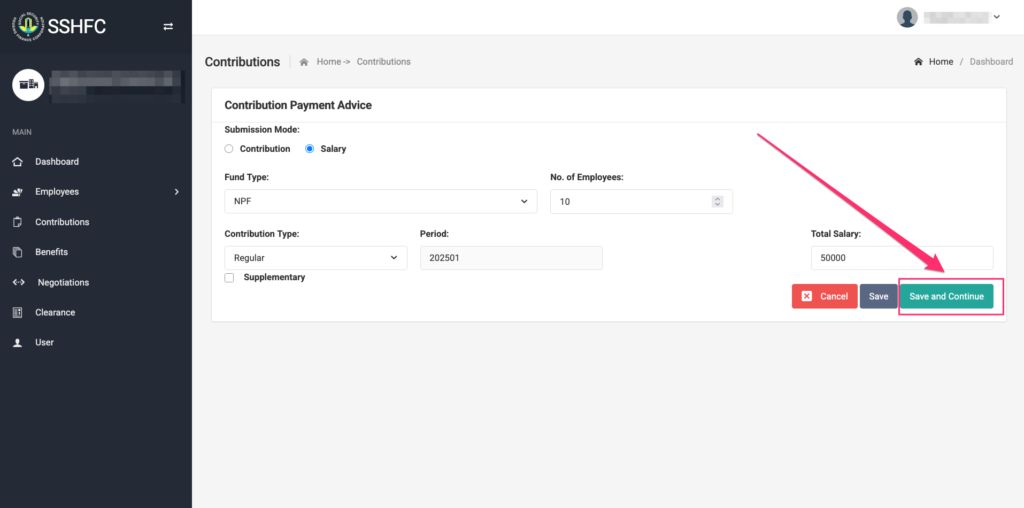
Step 3 – Submission Mode:
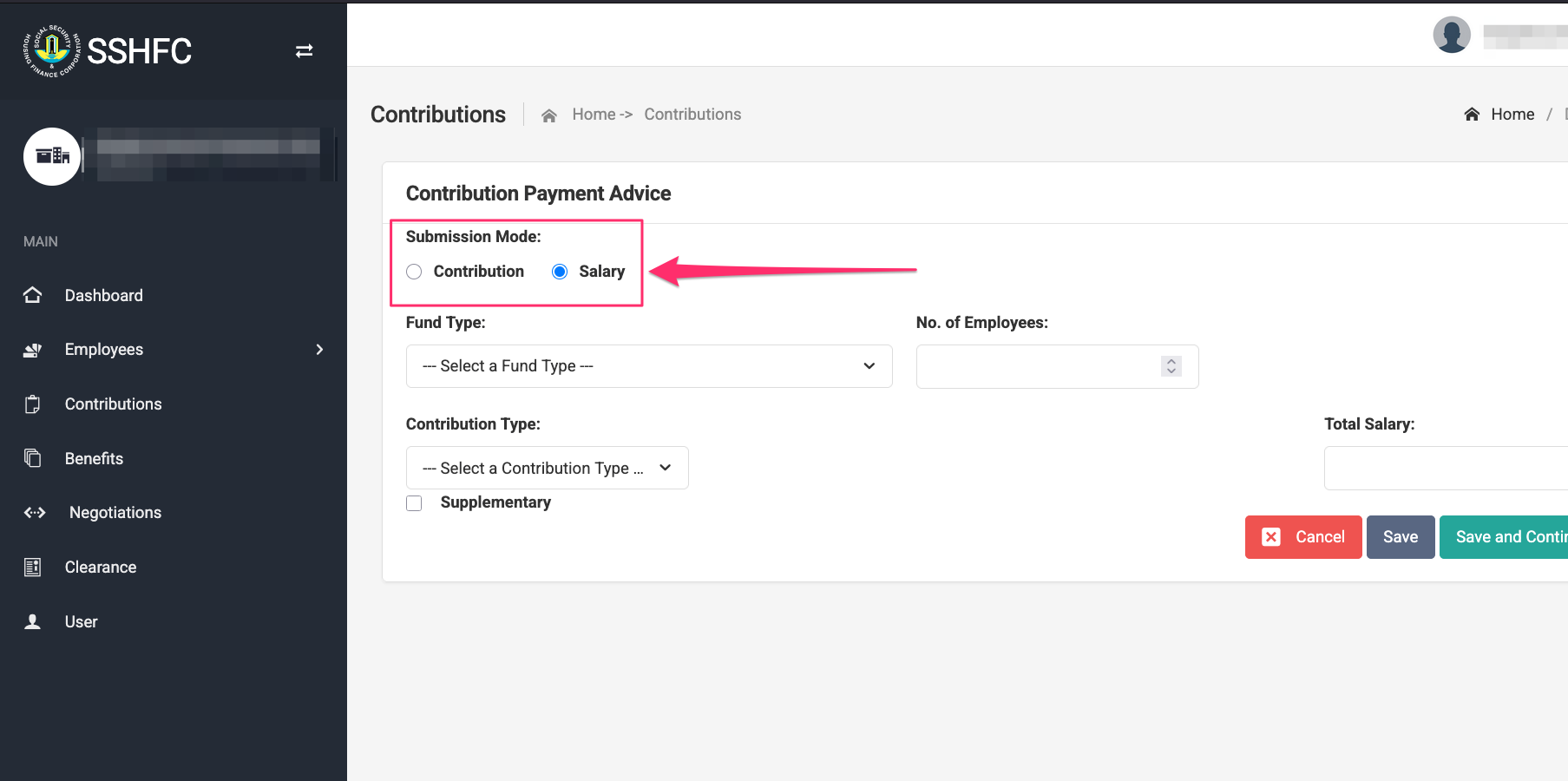
Choose how you want to compute contributions:
- Select “Salary” if you want the system to automatically calculate contributions based on employee salaries.
- Select “Contribution” if you already know the exact contribution amounts.
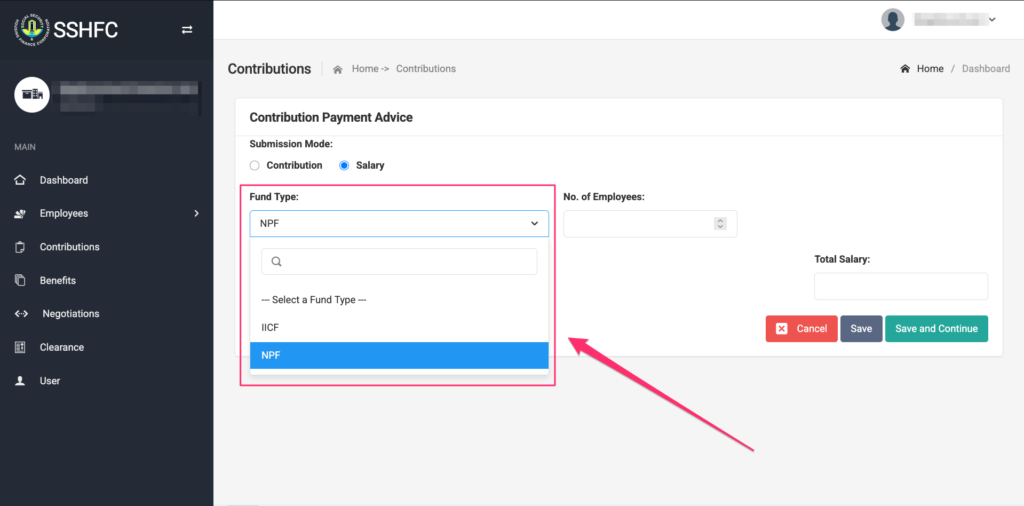
Step 4 – Fund Type:
Select the appropriate fund type from the available options based on your organization’s contribution scheme.
Step 5 – Number of Employees:
Enter the number of employees you are generating the advice sheet for.
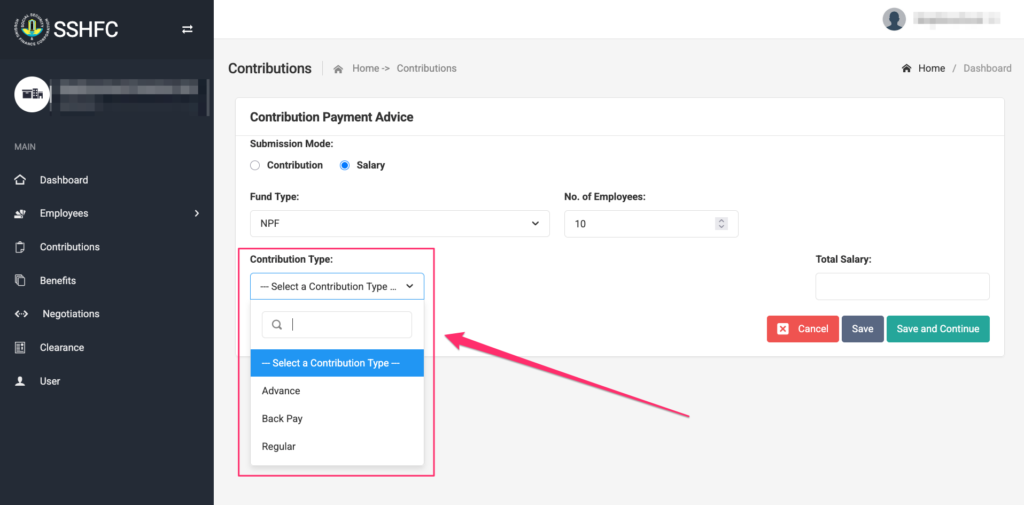
Step 6 – Contribution Type:
Choose the type of contribution you’re submitting:
- “Regular” for the current month.
- “Advance” for contributions covering upcoming months.
- “Back Pay” for missed or retroactive contributions.
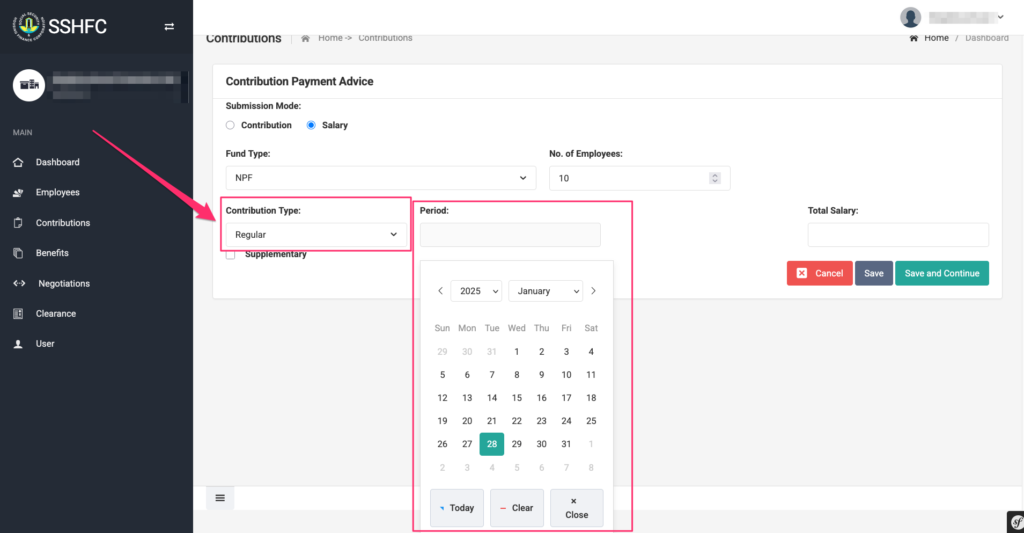
Step 7 – Contribution Period:
- If you selected “Regular”, choose the specific month.
- If you selected “Advance” or “Back Pay”, select both the start and end period.
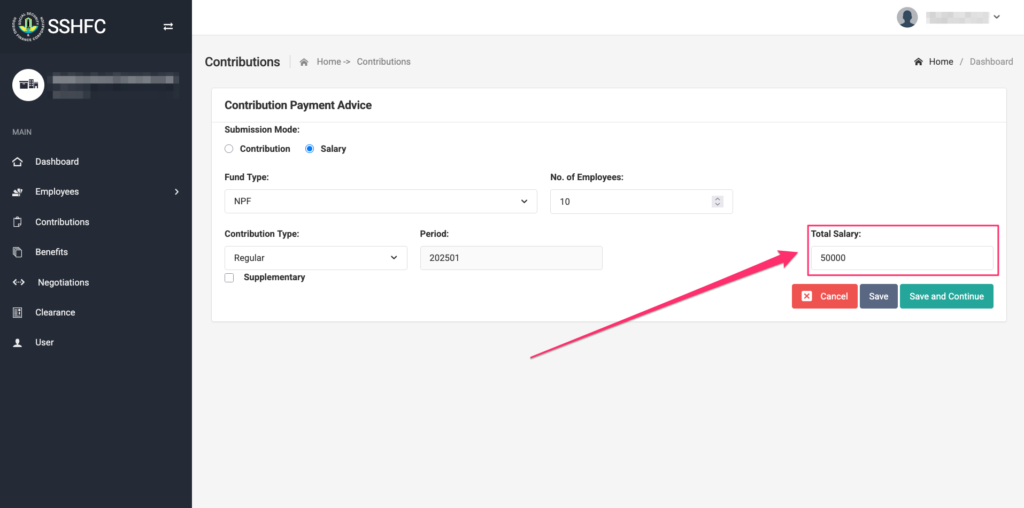
Step 8 – Total Amount:
- Enter the total salary if using the “Salary” submission mode.
- Enter the total contribution if using the “Contribution” submission mode.
Step 9 – Save and Continue:
Click on “Save and Continue” to move to the next step.
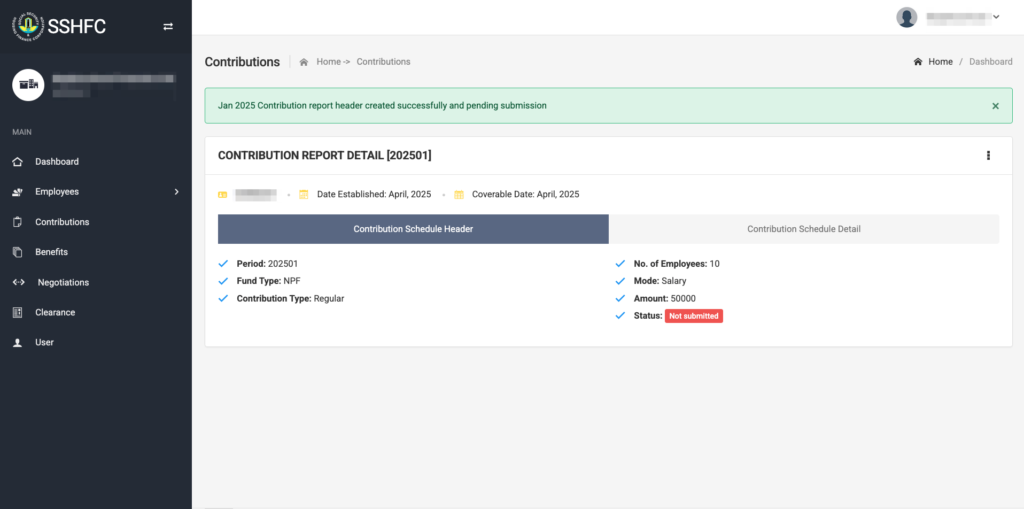
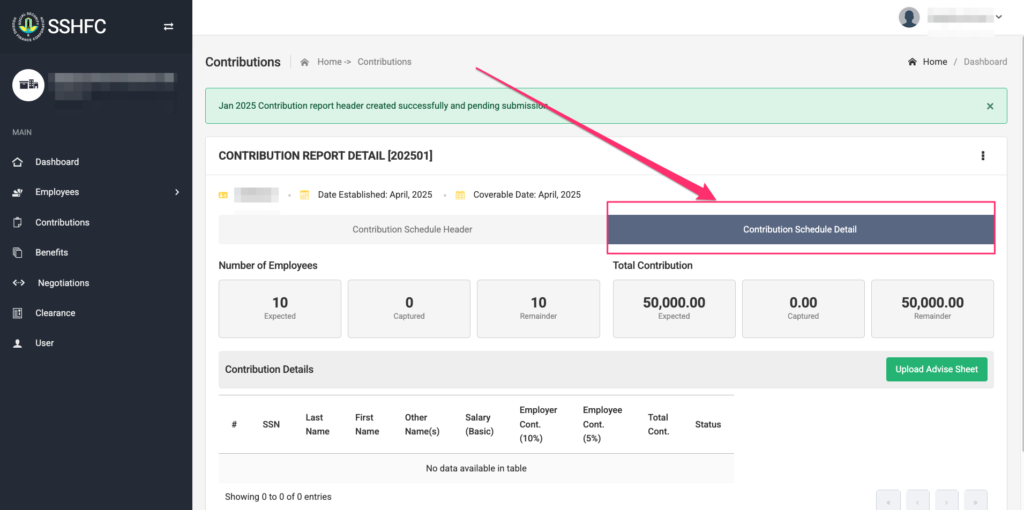
Step 10 – Download Advice Sheet:
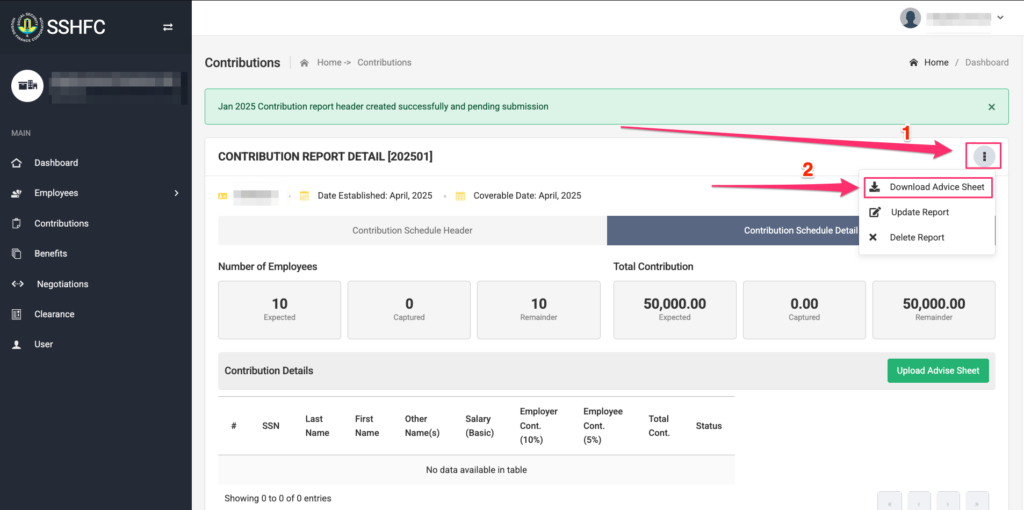
Click on “Download Advice Sheet” to download the Excel file. You may edit the salary column for specific employees if necessary.
Step 11a – Check and Match Totals in Excel:
In the Excel advice sheet, check the total salary amount—this is usually color-coded:
- Green = the total matches the expected amount.
- Red = there’s a mismatch.
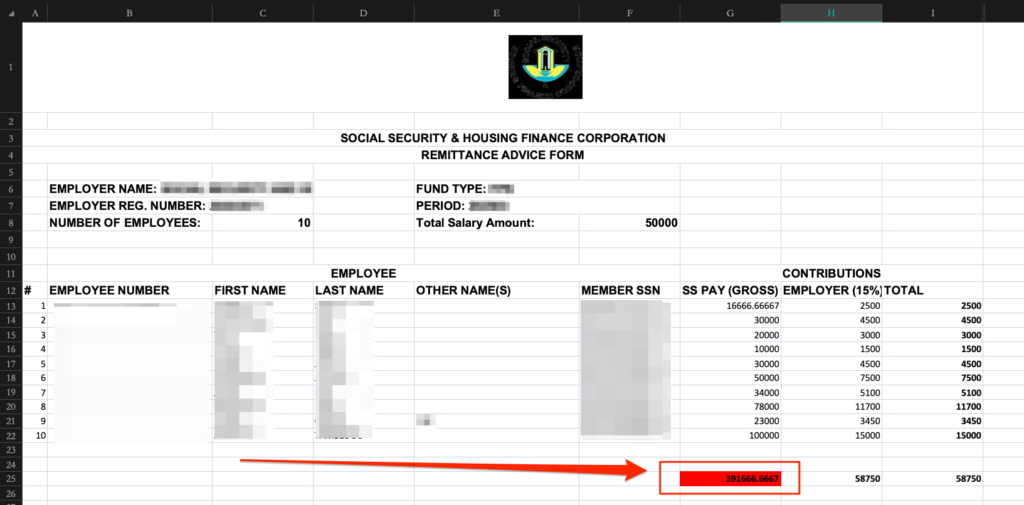
Step 11.b – Check and Match Totals in Excel:
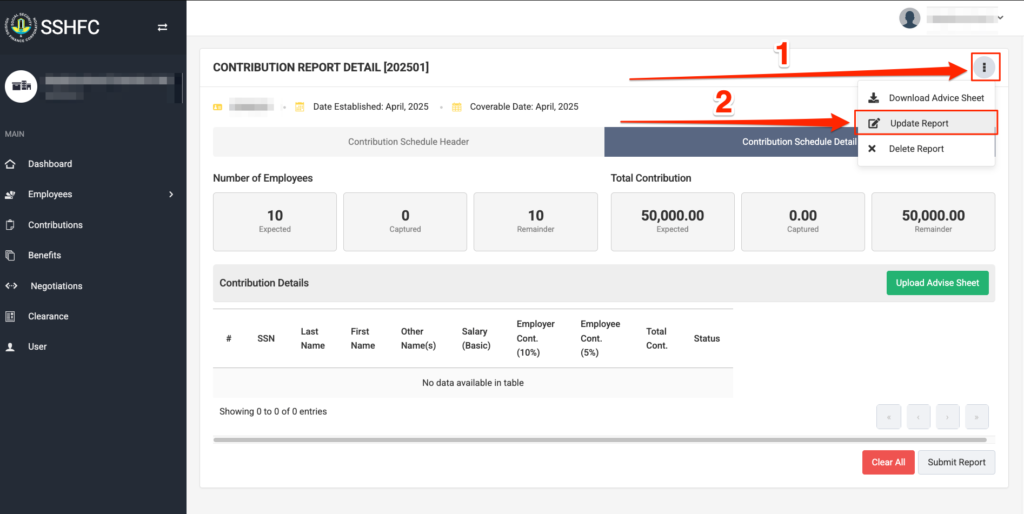
If you changed any salary amounts in the Excel sheet and the new total is different from what you originally entered as “total salary”, click the “Update Report” button from the system to update the “total salary” to match the new total from the Excel sheet. Refer to step 8.
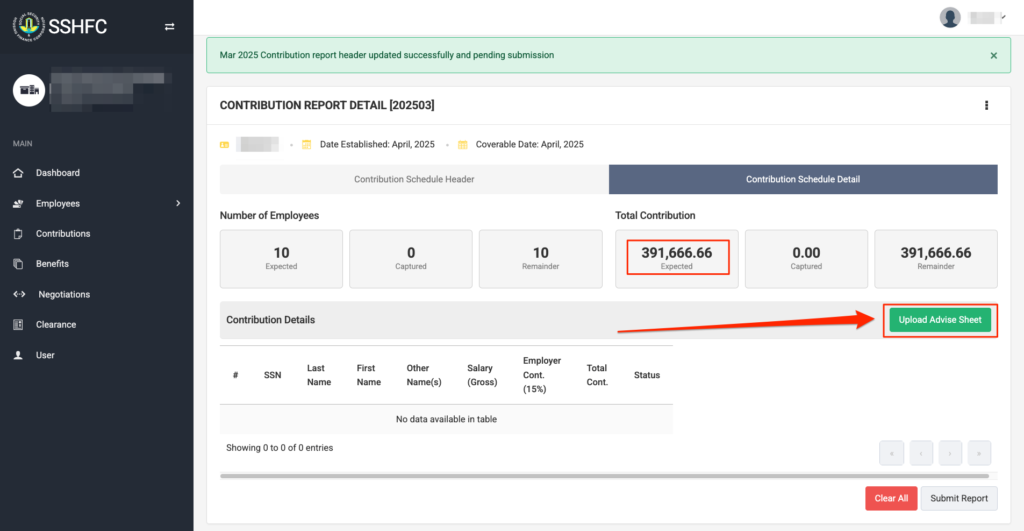
Step 12 – Upload Advice Sheet:
Once the Excel sheet value matches the total salary (Expected Total Contribution) and saved, click “Upload Advice Sheet” to upload it back into the system.
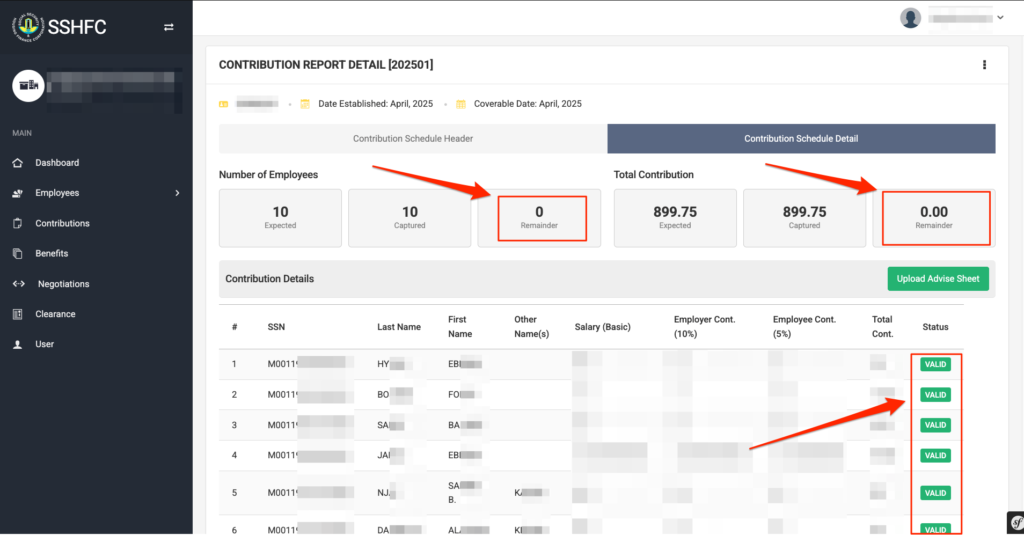
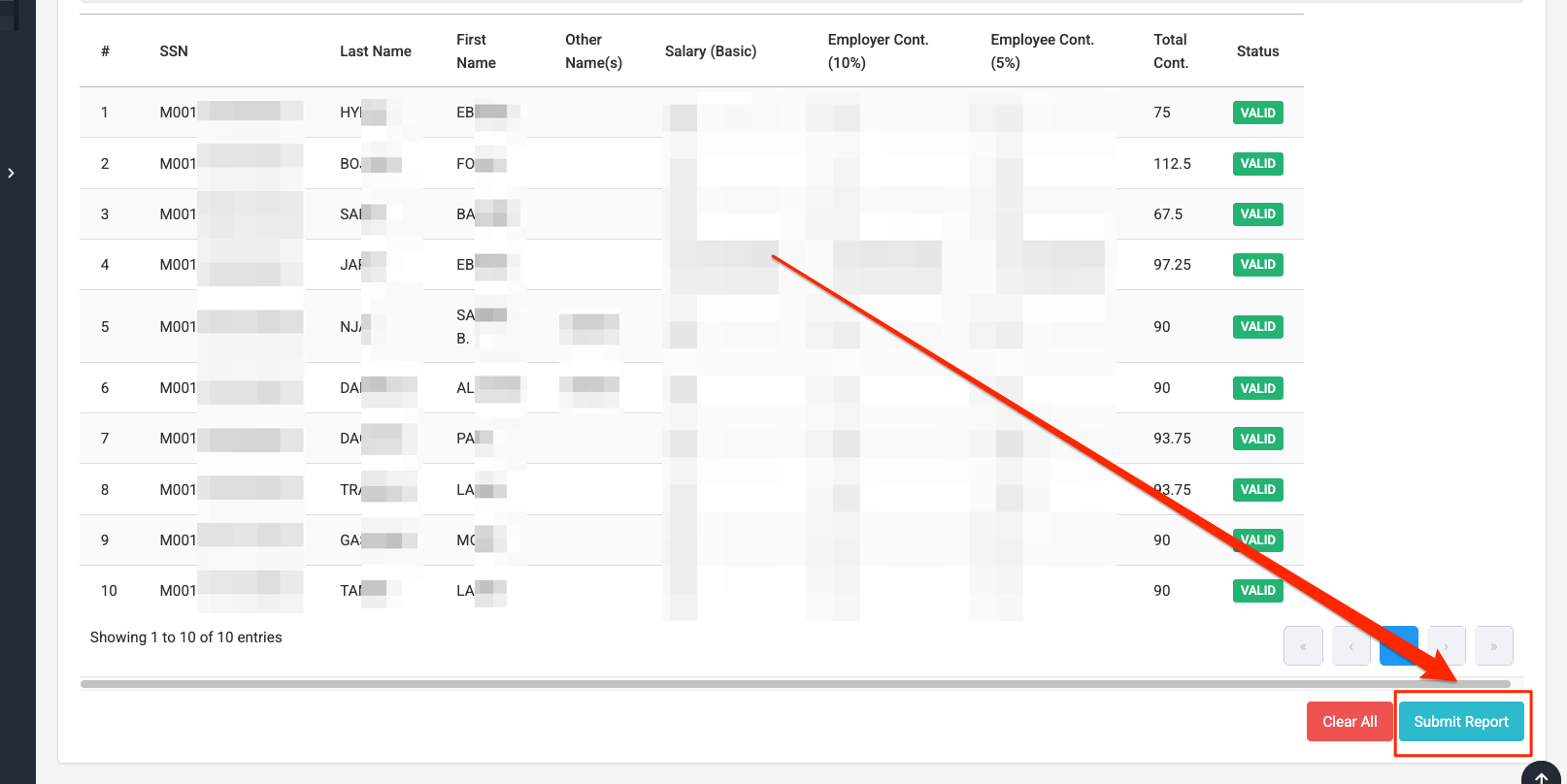
Step 13 – Validation Status:
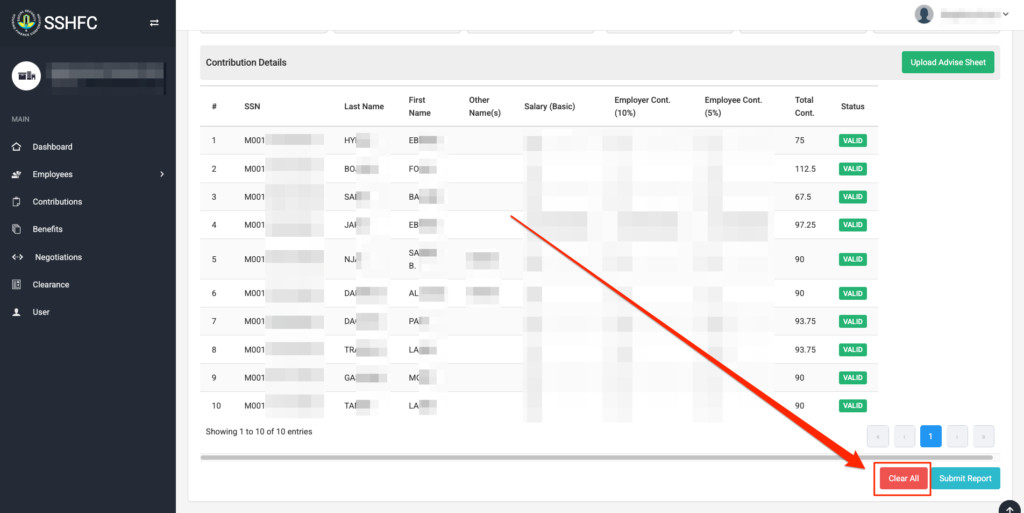
If everything is correct, the system will show “VALID” status for all employees. The Number of Employees Remaining and Total Contribution Remaining will both be 0.00.
Step 14a – Submit Report:
Click on “Submit Report” button at the bottom to complete and submit the advice sheet.
Step 14b – Clear All (if needed):
If there are errors or issues, click “Clear All” to reset and start the process from step 11.